Emergency Notification
Case Study UX Research UX Design UI Design Usability Test Challenges
Role: Product Designer
Toolkit: XD, Figma
Overview
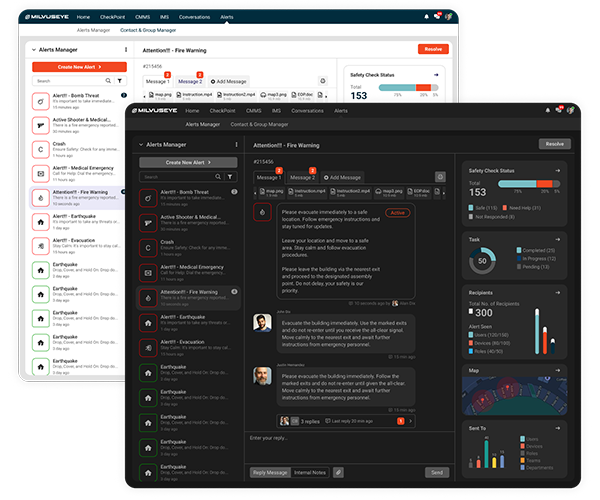
Sports and entertainment centers are becoming increasingly popular, leading to a growing number of employees and audience members. With this growth, the risk of threats such as terrorist attacks, active shooters, bomb threats, fights, storms, and floods also rises. Your most valuable assets are your employees and audience, and now these centers require a seamless solution to send alert notifications to ensure their safety. That’s why we’re introducing an emergency alert notification application-designed to protect your employees and audience from potential threats, ensuring their security in any situation.
Design Thinking
Sports and entertainment centers are becoming increasingly popular, leading to a growing number of employees and audience members. With this growth, the risk of threats such as terrorist attacks, active shooters, bomb threats, fights, storms, and floods also rises. Your most valuable assets are your employees and audience, and now these centers require a seamless solution to send alert notifications to ensure their safety. That’s why we’re introducing an emergency alert notification application-designed to protect your employees and audience from potential threats, ensuring their security in any situation.

Discover
Find solutions to your most pressing challenges with ease.

Empathize
Quantitative & Quantitative Research Competitive Analysis

Define
User Personas
Empathy Mapping

Ideate
Ideation Information Architecture & User Flow

Prototype
Wireframes Design System
& Prototype

Test
Heuristic Evaluation
Usability Testing

Discover
Problem Statement
Develop a comprehensive system to enhance the security of stadium employees and audiences by helping them avoid and respond to potential threats.
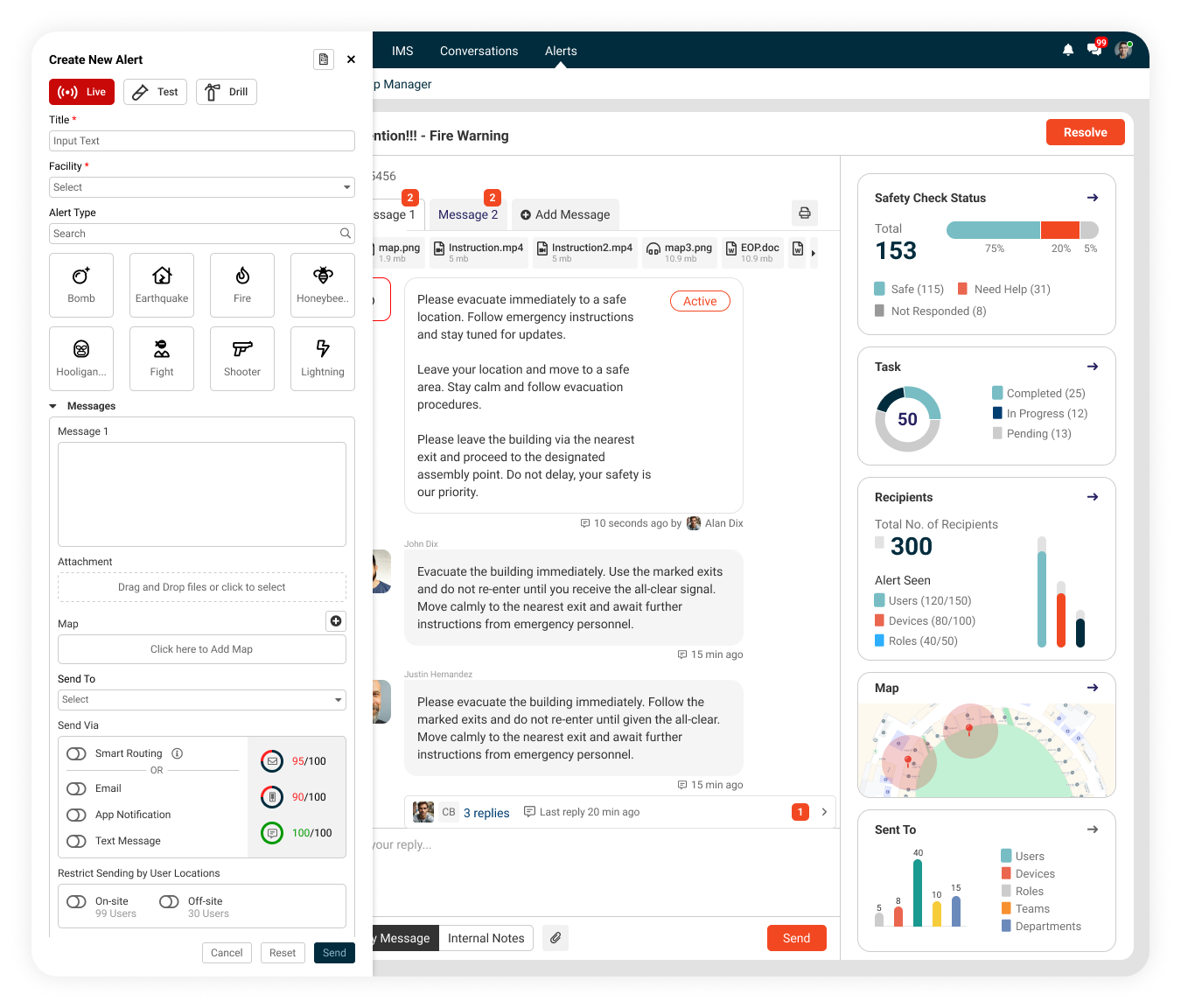
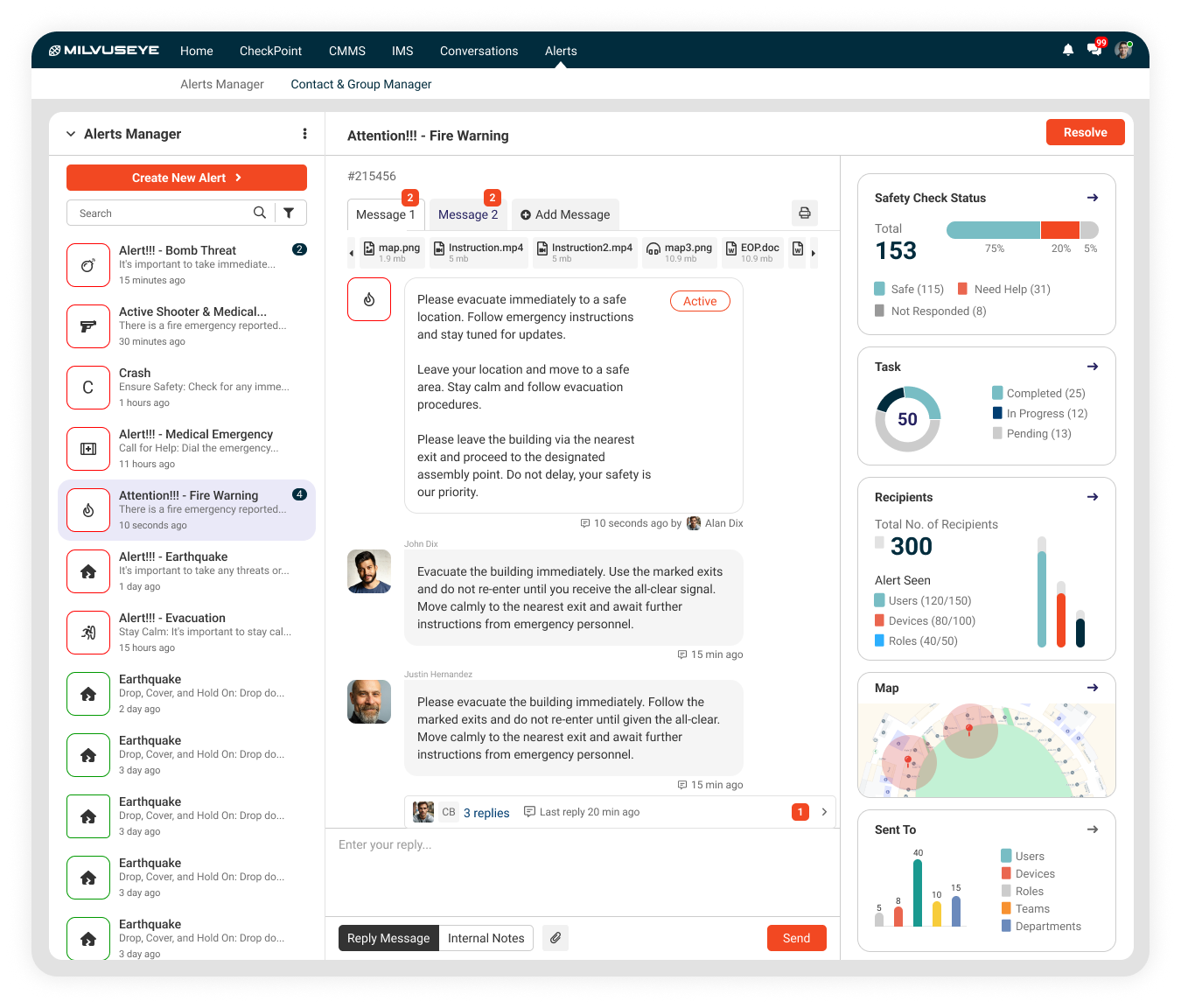
Create a web application that allows administrators to send emergency notifications and track all alerts in real-time.
For employees, develop a mobile app to receive instant alert notifications. The system will track each alert, monitor responses, and generate detailed reports, ensuring a robust approach to managing and preventing security threats effectively.

Empathize
Qualitative Analysis
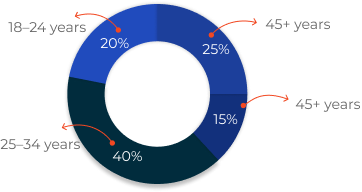
Age Demographics
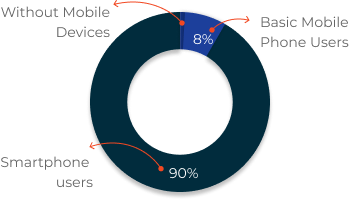
Device Ownership
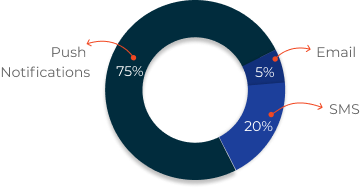
Preferred Alert Type
Quantitative Analysis
User Interview Goals
Understand User Needs and Expectations
- Identify what types of alerts users expect (e.g., weather, security, medical emergencies).
- Determine how users prefer to receive notifications (e.g., push, SMS, sound alerts).
- Uncover any fears or concerns regarding emergency notifications (e.g., alert fatigue, privacy concerns).
Example Questions
- What would you consider the most critical type of alert during a stadium event?
- How often would you expect to receive non-critical vs. critical alerts?
Evaluate User Behavior During Emergencies
- Learn how users typically respond to alerts during live events or emergencies.
- Assess users’ familiarity with evacuation procedures and their preferred ways to receive instructions.
- Explore whether users would rely on staff, signage, or digital tools during an emergency.
Example Questions
- How do you usually respond when you hear an alarm or notification at an event?
- In case of an emergency, would you follow app instructions or wait for staff directions?
Identify Barriers to Usability and Accessibility
- Discover if users encounter difficulties interacting with alerts on their devices (e.g., readability, delays).
- Assess whether users with disabilities (e.g., hearing or visual impairments) can effectively use the app.
- Gather feedback on language preferences (e.g., support for multilingual users).
Example Questions
- Have you ever missed an alert because it wasn’t visible or clear enough?
- Do you require additional accessibility features, such as vibration or text-to-speech?
Explore User Preferences for Customization
- Understand users’ desire for control over alerts (e.g., ability to mute non-essential alerts).
- Identify how much notification frequency and type (SMS, push, email) should be customizable.
Example Questions
- Would you want alerts related to traffic or transportation before the event?
- How helpful would you find alerts to guide you to exits after the event?
Gauge User Trust and Perception of Alerts
- Assess how much users trust emergency alerts and whether they will act on them immediately.
- Identify any previous experiences where alerts failed or caused confusion.
- Explore how users perceive the balance between safety and disruption (e.g., alerts interrupting the event).
Example Questions
- Do you trust that stadium alerts will always provide accurate information? Why or why not?
- Have you ever received a false alert? How did it impact your response to future notifications?
Assess Context of Use and Scenarios
- Identify where users are likely to interact with the app (e.g., inside the stadium, during travel to/from events).
- Understand if users would find value in pre-event or post-event notifications (e.g., arrival updates, exit guidance).
Example Questions
- Would you want alerts related to traffic or transportation before the event?
- How helpful would you find alerts to guide you to exits after the event?
Gather Insights for Future Features
- Explore new features users might find valuable, such as real-time maps or in-app chat with staff.
- Identify ways to enhance user engagement during non-emergency situations (e.g., event updates, reminders).
Example Questions
- Are there any additional features you’d want to see in the app besides emergency alerts?
- How can this app enhance your overall event experience, even when no emergency occurs?
How users feel when they receive emergency notifications.
- IUnderstand the user feeling when he receive emergency notifications.
- Find out the how he respond when the emergency notification received in event.
Example Questions
- How anxious do you feel after receiving an emergency notification?
- What is your typical response to receiving an emergency alert during an event?
Competitive Audit
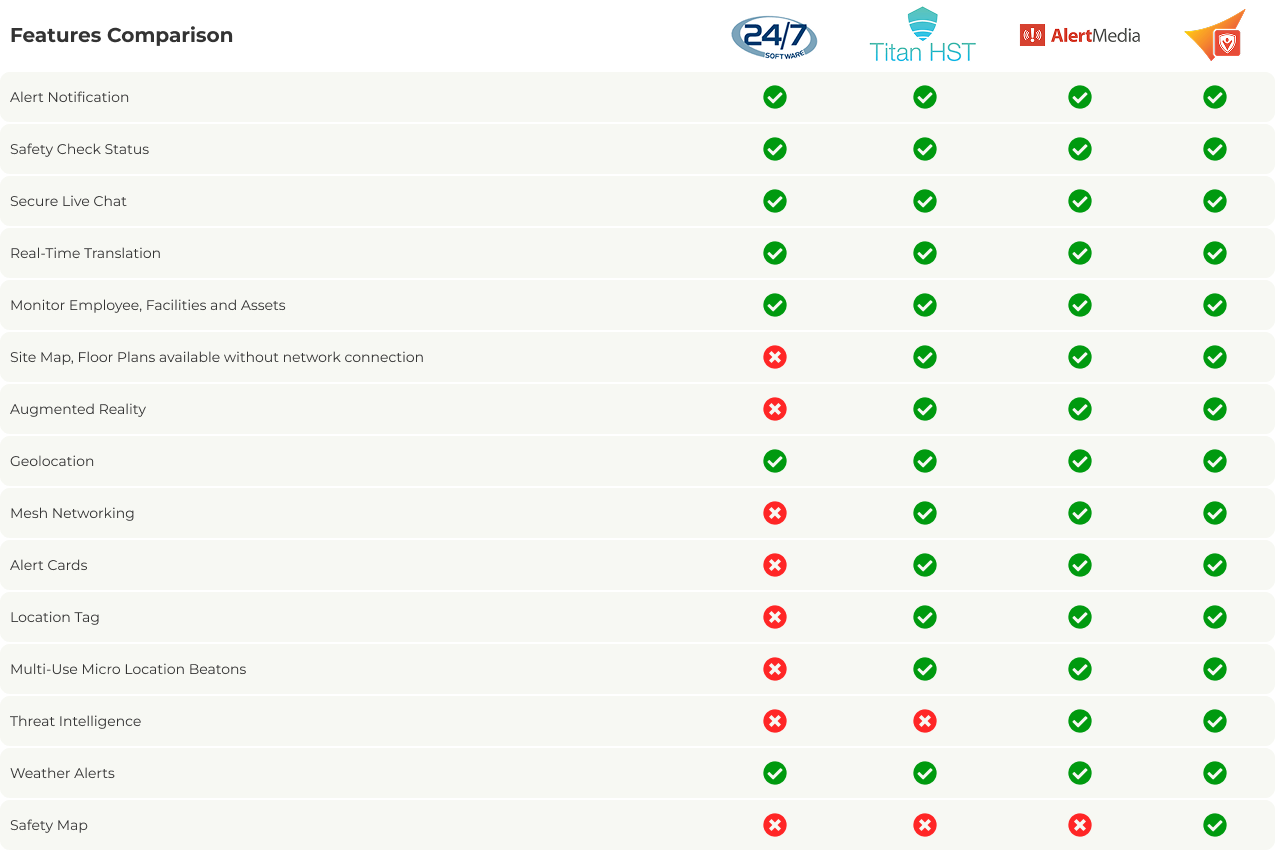
There are many competitors in the market so started with few direct competitors. So, the following are taken into consideration:
Feature Comparison Industries/Sectors Target Audience Other Solutions Challenges Solved Design Comparison

Define
Personas & Empathy Maps
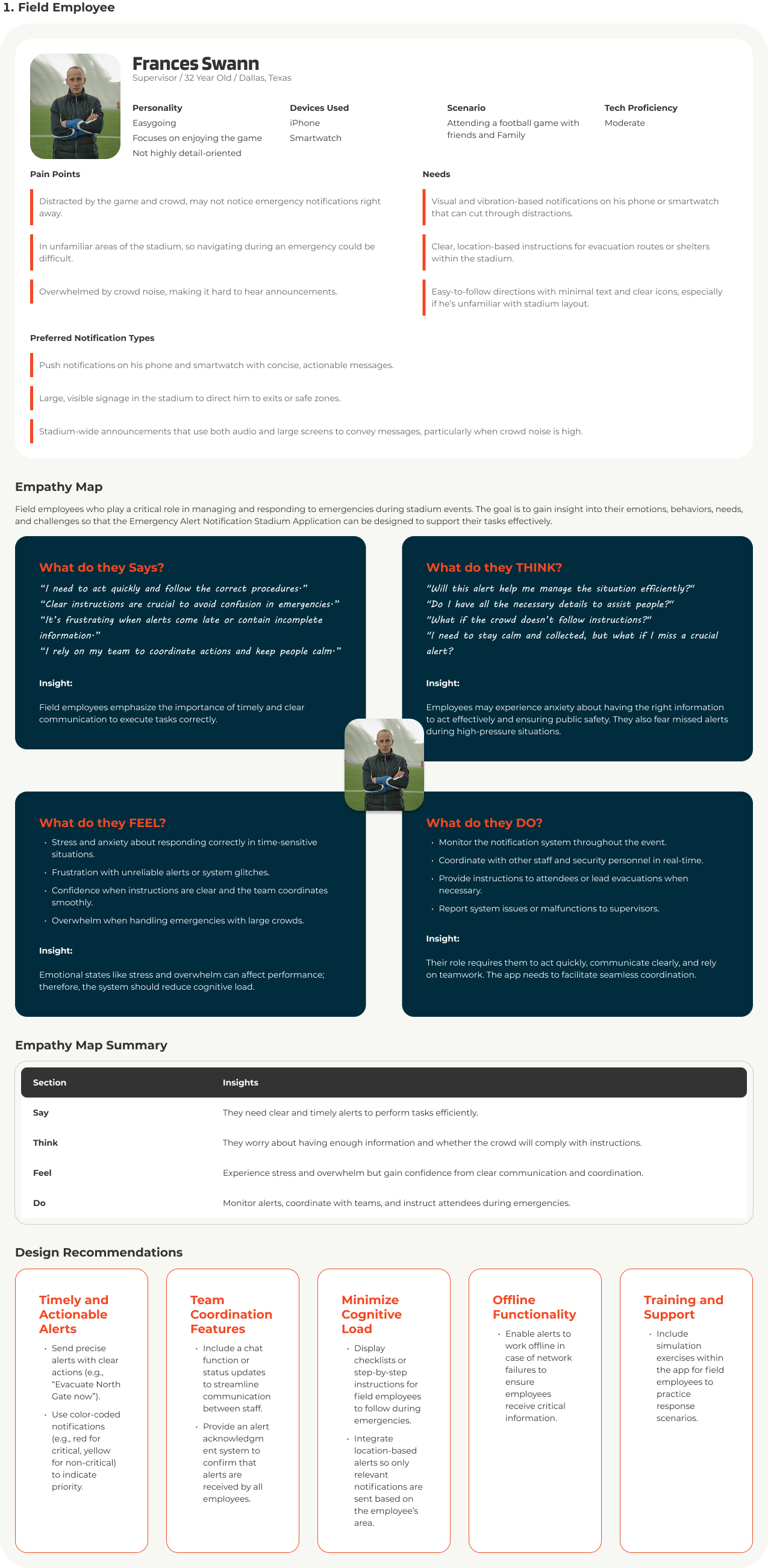
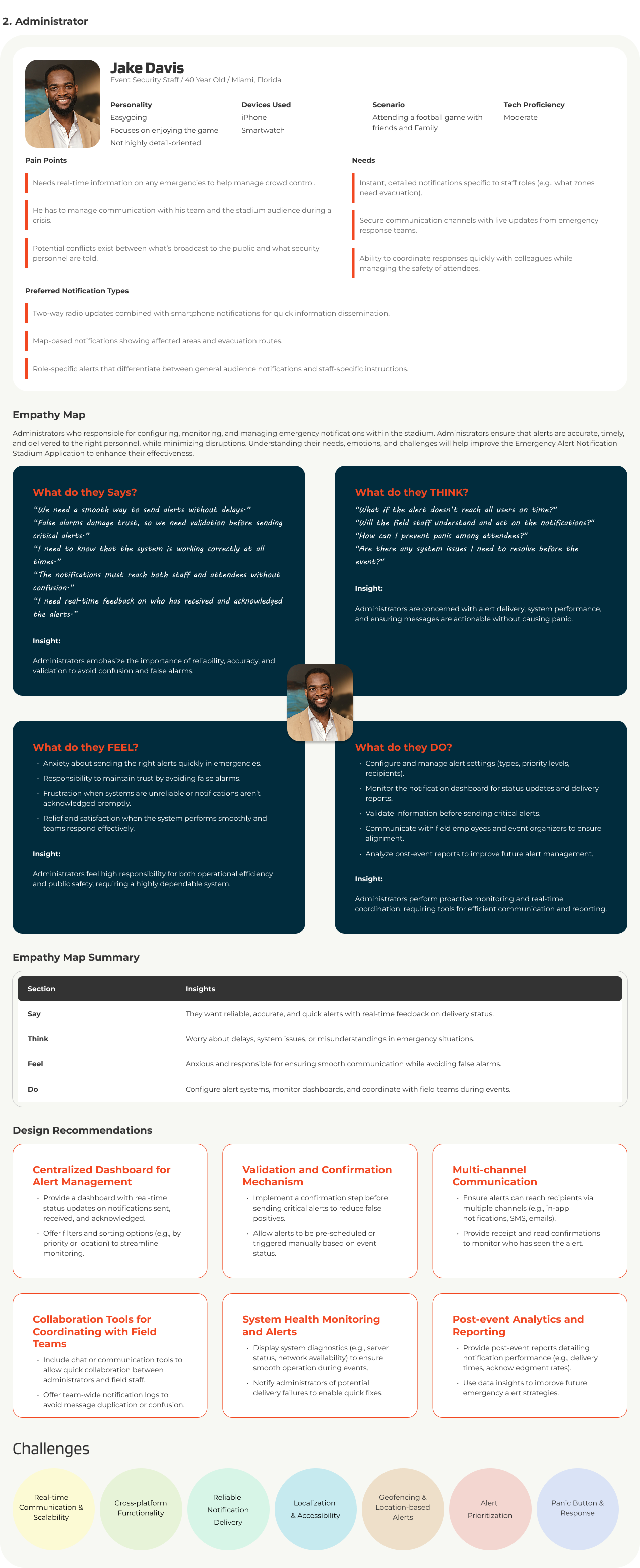
During the user interviews, we focused on three distinct personas:

Ideate
UX Problems and Solutions
Complex Navigation for Critical Tasks
Simplify navigation by organizing core emergency functions (e.g., “Acknowledge Alert,” “Report Incident”) in a single dashboard. Use large, easily recognizable icons and keep navigation to no more than 2–3 main levels. Implement a “panic button” for immediate access to emergency features.
Alert Fatigue from Too Many Notifications
Design a clear hierarchy for notifications, such as color-coded alerts for different urgency levels (e.g., red for critical, yellow for important). Allow users to customize notifications based on alert type, minimizing non-essential alerts and emphasizing high-priority ones to reduce fatigue.
Hard-to-Read Text and Icons During Emergencies
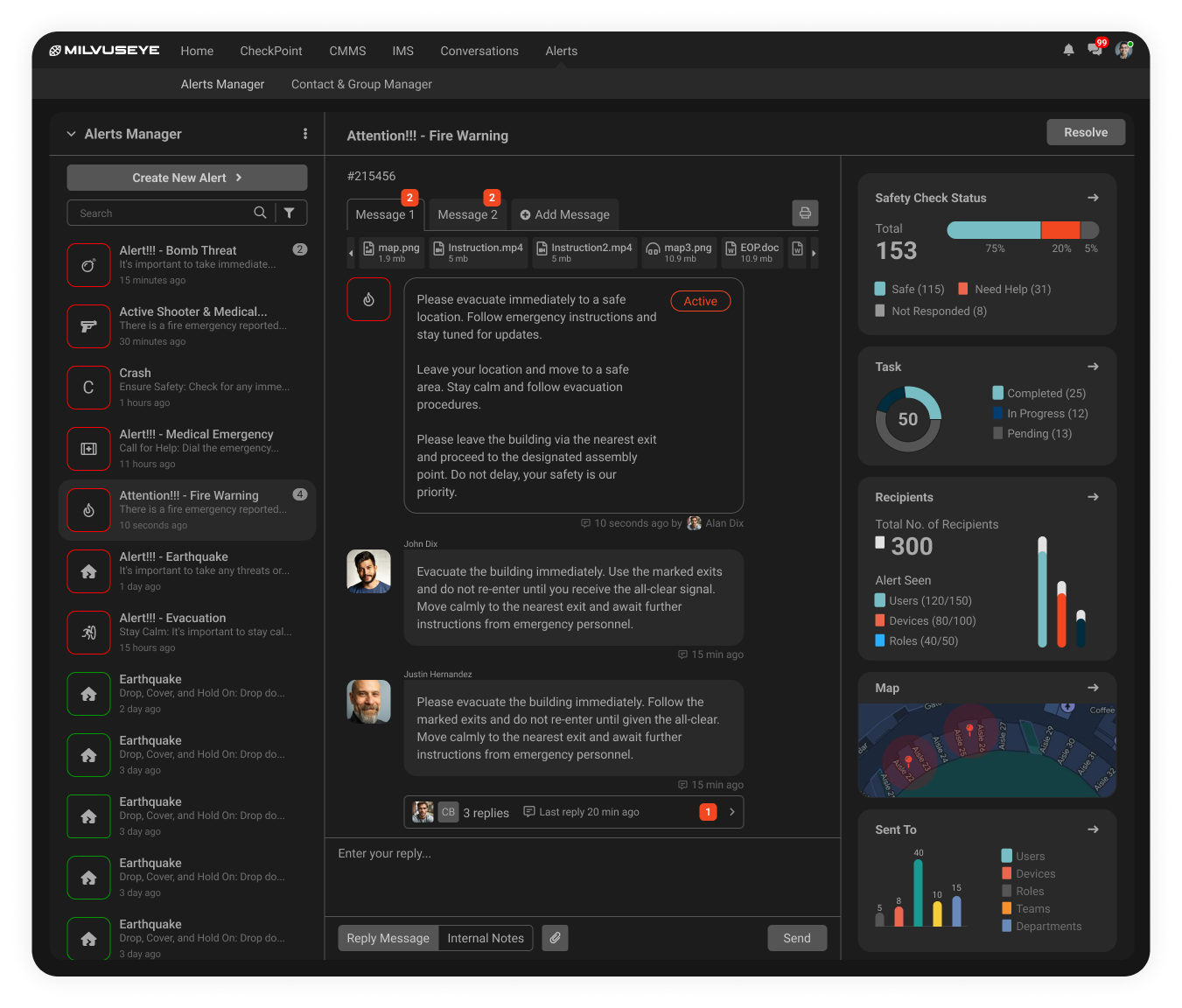
Use large, high-contrast text and icons for key features to ensure readability under stress and in various lighting conditions. Stick to accessible fonts and avoid over-cluttering the interface with excessive details. Enable a dark mode to improve visibility in dim environments.
Limited Offline Access to Critical Information
Enable offline functionality for essential features, like access to emergency contacts, protocols, and last known updates. Store these locally and update them whenever the user has internet access to maintain the latest information.
Difficulty Reporting Incidents with Context
Streamline the reporting process with an easy-to-navigate form that auto-populates common fields (like date and location) and allows for quick selection of incident type. Provide options for attaching photos and using voice input to make the report as context-rich as possible without adding extra steps.
Lack of Real-Time Feedback on Incident Status
Add a real-time progress indicator that displays the status of reported incidents (e.g., “Report Received,” “Response Dispatched”) to reassure users that their report has been acknowledged and is being addressed.
MoSCoW Analysis
The MoSCoW method is most effective when it comes to prioritizing requirements in projects with either fixed or tight deadlines.
Must Have
- Real-Time Emergency Alerts: Immediate push notifications for high-priority incidents (e.g., fire, medical emergency) to ensure employees receive timely warnings.
- Location-Based Alerts: Customized notifications based on specific areas within the stadium, allowing employees to respond to incidents relevant to their location.
- Incident Reporting Tool: Simple, fast interface for employees to report incidents with geolocation, timestamp, and photo upload functionality.
- Quick Access to Emergency Protocols: Easily accessible, step-by-step guides for handling various emergencies (fire, bomb threat, medical emergency).
- Employee Directory with Contact Details: Quick access to emergency contacts for seamless communication.
- Offline Mode for Essential Functions: Store critical information and protocols locally, allowing employees to access them during connectivity outages.
- High Priority and Low Priority Alert Differentiation: Color-coded alerts or priority levels so employees can quickly identify critical notifications.
Should Have
- Real-Time Emergency Alerts: Immediate push notifications for high-priority incidents (e.g., fire, medical emergency) to ensure employees receive timely warnings.
- Location-Based Alerts: Customized notifications based on specific areas within the stadium, allowing employees to respond to incidents relevant to their location.
- Incident Reporting Tool: Simple, fast interface for employees to report incidents with geolocation, timestamp, and photo upload functionality.
- Quick Access to Emergency Protocols: Easily accessible, step-by-step guides for handling various emergencies (fire, bomb threat, medical emergency).
- Offline Mode for Essential Functions: Store critical information and protocols locally, allowing employees to access them during connectivity outages.
- High Priority and Low Priority Alert Differentiation: Color-coded alerts or priority levels so employees can quickly identify critical notifications.
Could Have
- Live Map of Stadium: Real-time map showing incident locations, relevant safety routes, and team member locations.
- Customizable Alert Settings: Allow users to customize alert types they receive based on their role and responsibilities.
- Multilingual Support: Multiple language options for non-English-speaking employees to ensure everyone can use the app effectively.
- Push Notification Reminders for Protocol Refreshers: Regular reminders to review safety protocols or complete training modules.
- User Feedback Mechanism: A tool for employees to provide feedback on incidents and app usability for continual improvement.
Won't Have
- Social Media Integration: Posting incident updates on social media is unnecessary and could compromise security.
- Third-Party Integrations (Non-Essential): Integrations with non-essential third-party apps or platforms, as they might compromise security or clutter the app.
- Employee Performance Metrics: Tracking individual response times or actions could be seen as intrusive and is outside the app's core emergency function.
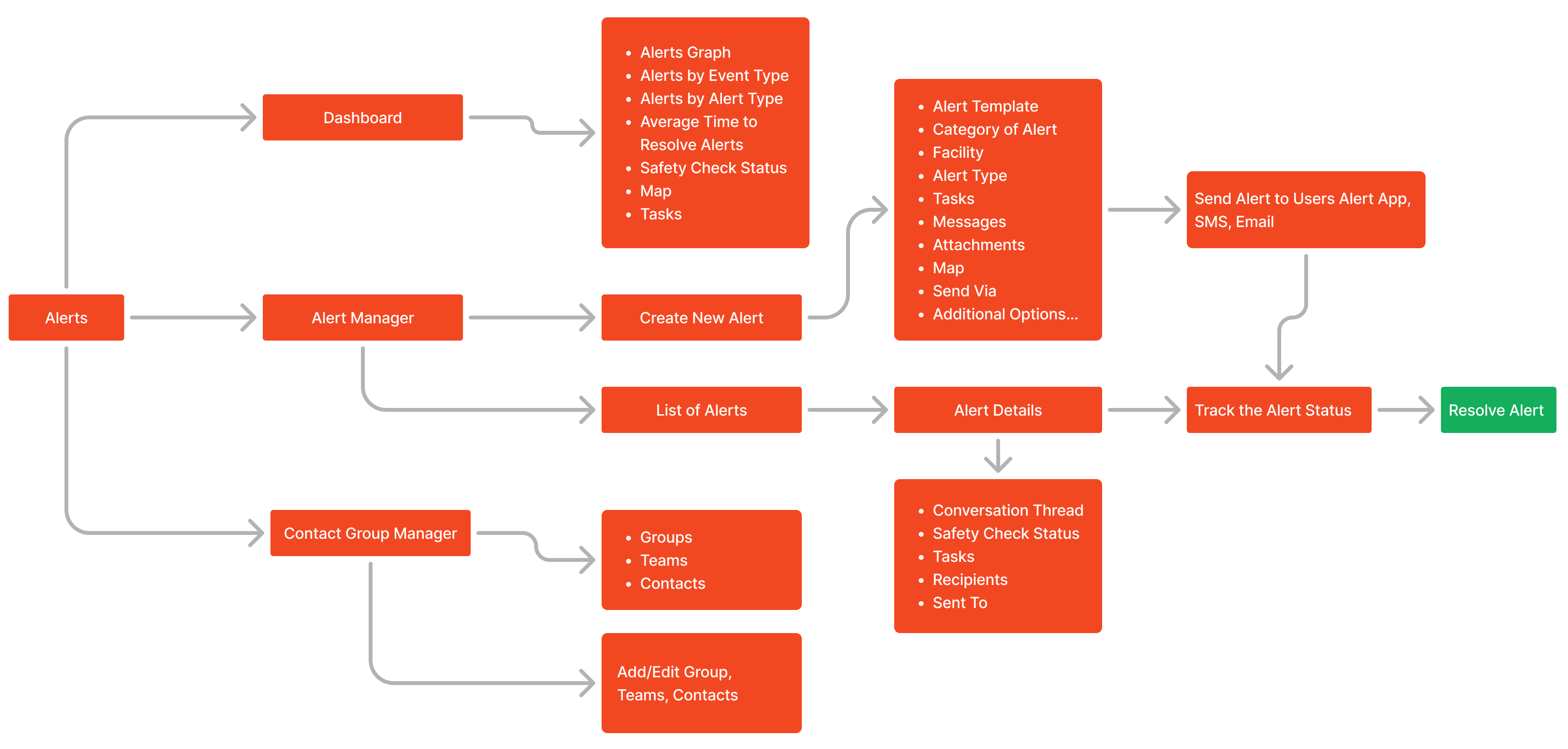
Information Architecture
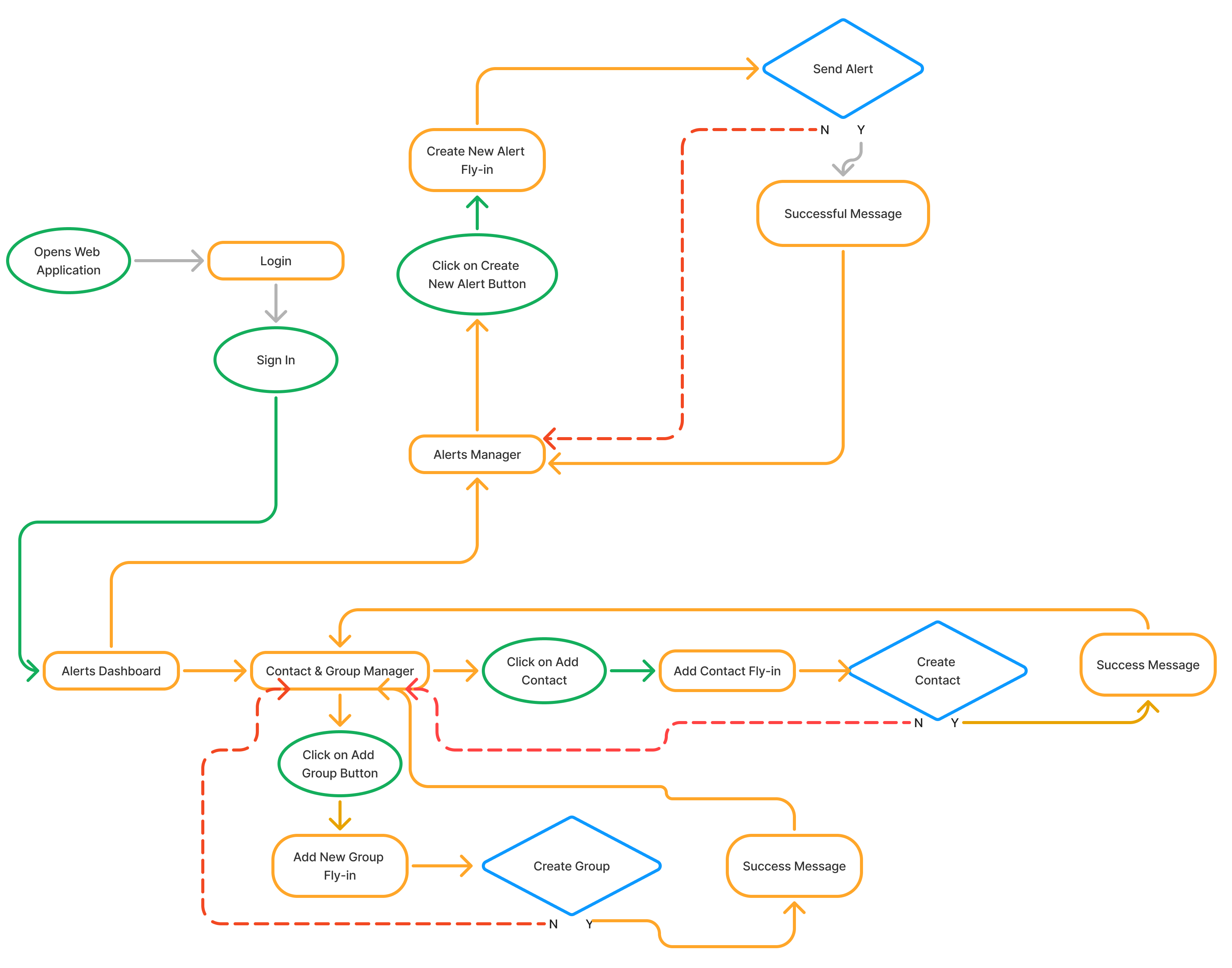
User Flow

Prototype
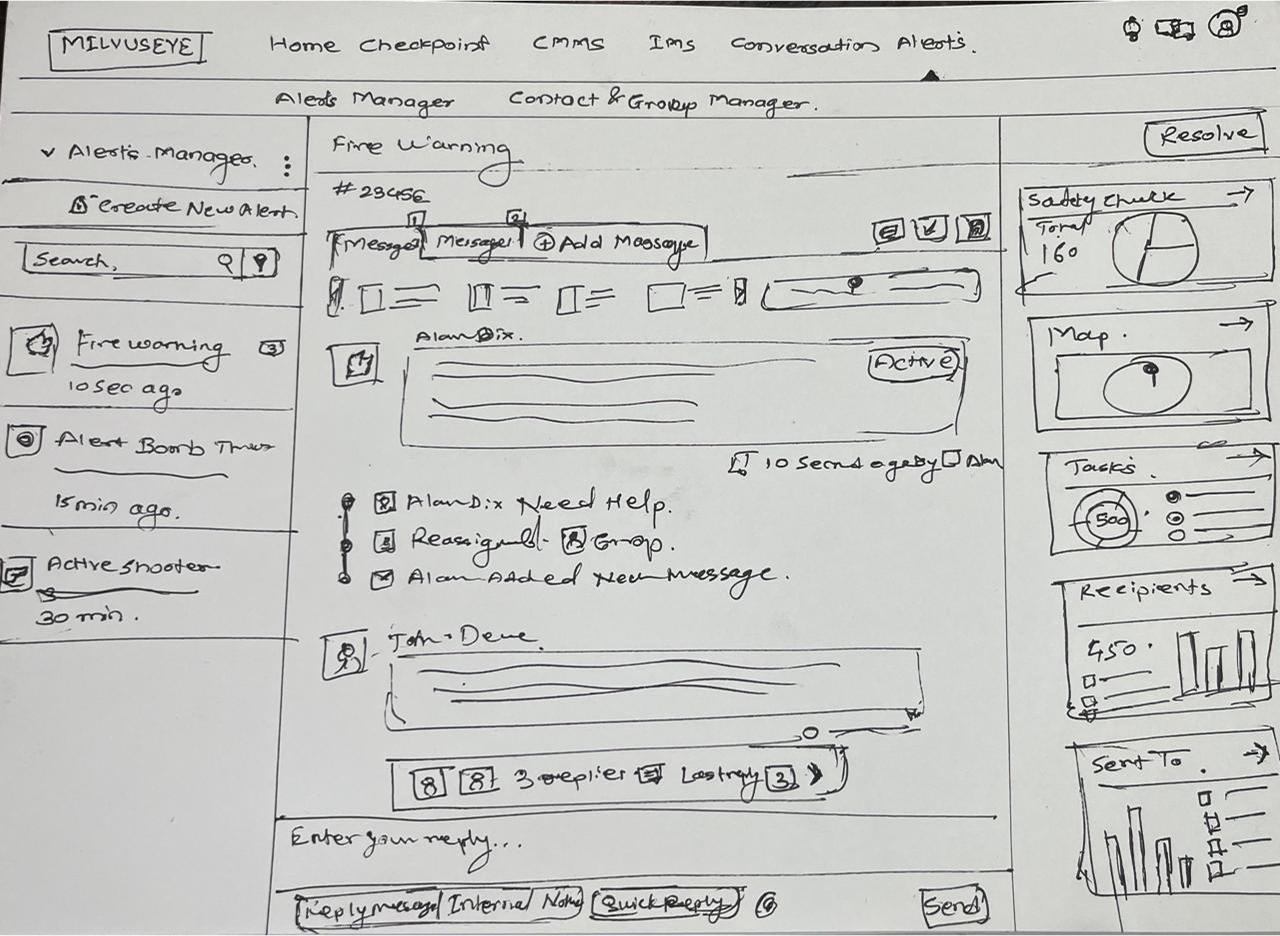
Wireframe
Low Fadility